Check this out. Worked for me [ http://superuser.com/questions/459507/usb-drive-becomes-write-protected-after-inserting-it ]
Showing posts with label Windows OS. Show all posts
Showing posts with label Windows OS. Show all posts
Thursday, May 29, 2014

Thursday, July 05, 2012
Use Laptop's Internet in you Android using WiFi
Been always a fan of Linux and Google. Of course I couldn't compromise with buying an Android for myself. The XPERIA NEO V was undoubtedly making it's mark as my first Android. But downloading the huge sized apps from the Play Store was pretty not possible with the slow yet pricey EDGE service. Had to find a way into my Laptop's internet service. Well, a full guide to connect the Droid WiFi to your Laptop based hotspot. You need this because connecting to this network ain't as easy as connecting to normal hotspots.
[ PrioArena ]
One more thing of note, for some reason I couldn't do that using the default WiFi settings. I had to use an app called "WiFi Manager". It's available for free at Google Play Store.
[ PrioArena ]
One more thing of note, for some reason I couldn't do that using the default WiFi settings. I had to use an app called "WiFi Manager". It's available for free at Google Play Store.
Sunday, April 29, 2012
How to get your lost Linux OS after Installing a Windows crap
Requirement: An Ubuntu Linux Live CD / USB. In this case you can make do with anything that has GRUB-INSTALL package with the Live CD. But if you have access to the internet using that Live session then you can just Google things down and don't even need this post, right?
Method:
1. Launch the Live Session.
2. Bring up terminal and type: sudo su
this gives you the privilege of a root in the live session
3. Now type: fdisk -l
Lists up all the partitions present in your system. Look for the partition that has "Linux" in the rightmost column. Note it's /dev/sdx name from the left most column.
4. Type : mount /dev/sdx /mnt
Here /dev/sdx is the partition name that you noted. This command mounts that partition in mnt
5. Now type: grub-install --root-directory=/mnt/ /dev/sdx
Here /dev/sdx is the same thing as the previous command. Look at the output, the last line should say that the Installation went successful. VIOLA!!!
Reboot your system from your hard drive (normally) and hopefully the OSs should be there listed beautifully by GRUB. Smile!!!! Don't have to miss your favorite Linux distro.
Method:
1. Launch the Live Session.
2. Bring up terminal and type: sudo su
this gives you the privilege of a root in the live session
3. Now type: fdisk -l
Lists up all the partitions present in your system. Look for the partition that has "Linux" in the rightmost column. Note it's /dev/sdx name from the left most column.
4. Type : mount /dev/sdx /mnt
Here /dev/sdx is the partition name that you noted. This command mounts that partition in mnt
5. Now type: grub-install --root-directory=/mnt/ /dev/sdx
Here /dev/sdx is the same thing as the previous command. Look at the output, the last line should say that the Installation went successful. VIOLA!!!
Reboot your system from your hard drive (normally) and hopefully the OSs should be there listed beautifully by GRUB. Smile!!!! Don't have to miss your favorite Linux distro.
Monday, January 31, 2011
Controlling another Laptop/PC using 1:1 LAN
Previously I've posted about how to connect two PCs/Laptops using LAN, read about it here.
The connection established using that method can be used to control one Station using another.
You need the software called UltraVNC. Nice & easy to use, this app can be obtained freely using internet. The setup is pretty straightforward. If you want optimized connection use the downloads that the setup talks about. After that you can configure the PC you are trying to CONTROL FROM using this page. Only the first part will do. Ofcourse you need UltraVNC up and running on both the systems. Then just type in the IP address of the Station you want to control in the very first blank space and press "Connect". You should see the screen of the other PC. Probably with the wallpaper gone.
Problems: Everything is good and great except the mouse is weird in screens that are not in the same resolution. Which means playing pointer based games is an "Oh no!".
Sunday, January 30, 2011
Connecting 2 PCs or Laptops using a LAN cable alone
It's a tutorial I wrote for my future frustration recoveries. It's pretty easy and lots of tutorials are avaible if you aren't clever enough. But most of them forget to mention things or are not universal for all the cases. I have done this so many times. Yet, I had to figure out a way this time myself even when I used one of those tutorials.
Well, first off you need a LAN cable. Both of your PCs must have LAN connectivity and atleast one of them must have modern/advanced (basically supporting MD/x) LAN card because sometimes the cable type becomes a headache. I seriously never cared about what cable I had. But MD/x enabled LAN cards can make do with any situation.
Alright, now for the settings in the PCs. Do this on both.
1. Go to My Computer (don't try to use the old joke here), Right Click > Properties.
2. Click the tab "Computer Name" click "Change".
3. Name it anything but must select the radio button "Workgroup" and name the group "WORKGROUP'.
4. Go to Control Panel. Select Windows Firewall and turn it off.
5. Go to your Network Connections and select the Local Area Connection. If you don't have one try connecting both the PCs using the cable. Right click on it and select Properties.
6. In the "This connection uses the following items" box select only these four and deselct all the others.
a. Client for Microsoft Networksb. File and Printer Sharing for Microsoft Networksc. QoS Packet Schedulerd. Internet Protocol (TCP/IP)
I don't know how important this is but let's just do this for now. Cuz, it helped me have my connection working
7. Select "Internet Protocol (TCP/IP)" and click Properties button. Make these changes and nothing else.
For PC 1:IP Address: 192.168.1.1Subnet mask: 255.255.255.0Default gateway: 192.168.1.2For PC 2:IP Address: 192.168.1.2Subnet mask: 255.255.255.0Default gateway: 192.168.1.1
8. It's just a statement, you might need to restart both the PCs.
9. After that's all done go to My Network Places > Entire Network > Workgroup. I hope you have them both, at least the "Shared Documents" folder from both.
You can do Multiplayer gaming via this connection as I have done. My old rig can't run today's gems so I tried Moto Racer, Futurecop. The protocol I used was Internet TCP/IP. Think it will work for all the cases.
Saturday, January 01, 2011
Accessing Application Data in Windows 7
I was having problems finding the "Application Data" folder in Windows 7. It was interesting to know that to implement backward compatibility, Microsoft has used a simple approach. They created shortcuts that act like virtual folders which ultimately redirect XP Applications to access the antique way. The original folders are in" C:\Users\\".
To access Application Data you go to "AppData\Roaming" there.
To access Application Data you go to "AppData\Roaming" there.
Subscribe to:
Posts (Atom)
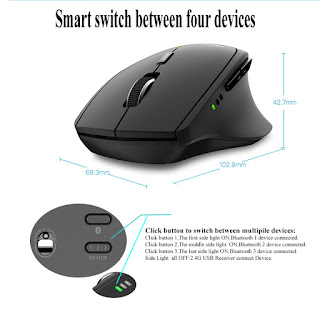
Connect Rapoo MT750S with Linux (Tested on Manjaro)
I bought this obvious copy of MX Master 2S in hopes of having the device switching functionality along with a lightweight body because I ha...
-
 I like coding a lot, keeps me glued to the PC for hours. For that reason it's a need to edit the Syntax Highlighter to suit my eyes for...
 -
Method: The problem at first glance seems too straightforward but it's not that much. Think a bit about the lines "Erin can add ...
-
 I bought this obvious copy of MX Master 2S in hopes of having the device switching functionality along with a lightweight body because I ha...